Why AI Artwork Isn’t Always Print-Ready
AI artwork for t-shirts is everywhere right now. Schools, businesses, and teams are using AI tools to create custom designs fast. And honestly? It’s exciting. But here’s the reality…
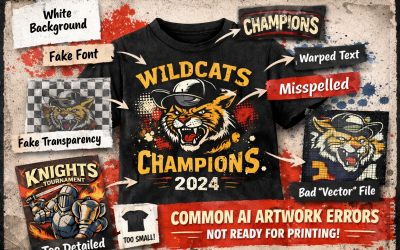
Most AI artwork is NOT print-ready. We’ve seen a huge increase in customers bringing in AI-generated designs. The idea is great. The execution? Usually needs work.
Common problems we see:
- No transparent background
- Low resolution images
- Fonts that don’t exist in real life
- Incorrect sizing for apparel
We’re not here to knock AI. We love it. We just want your design to turn out exactly how you imagined.
What Makes AI Artwork Print-Ready? (Start Here)
If you want your AI t-shirt design to print clean, sharp, and professional… this is the section that matters most.
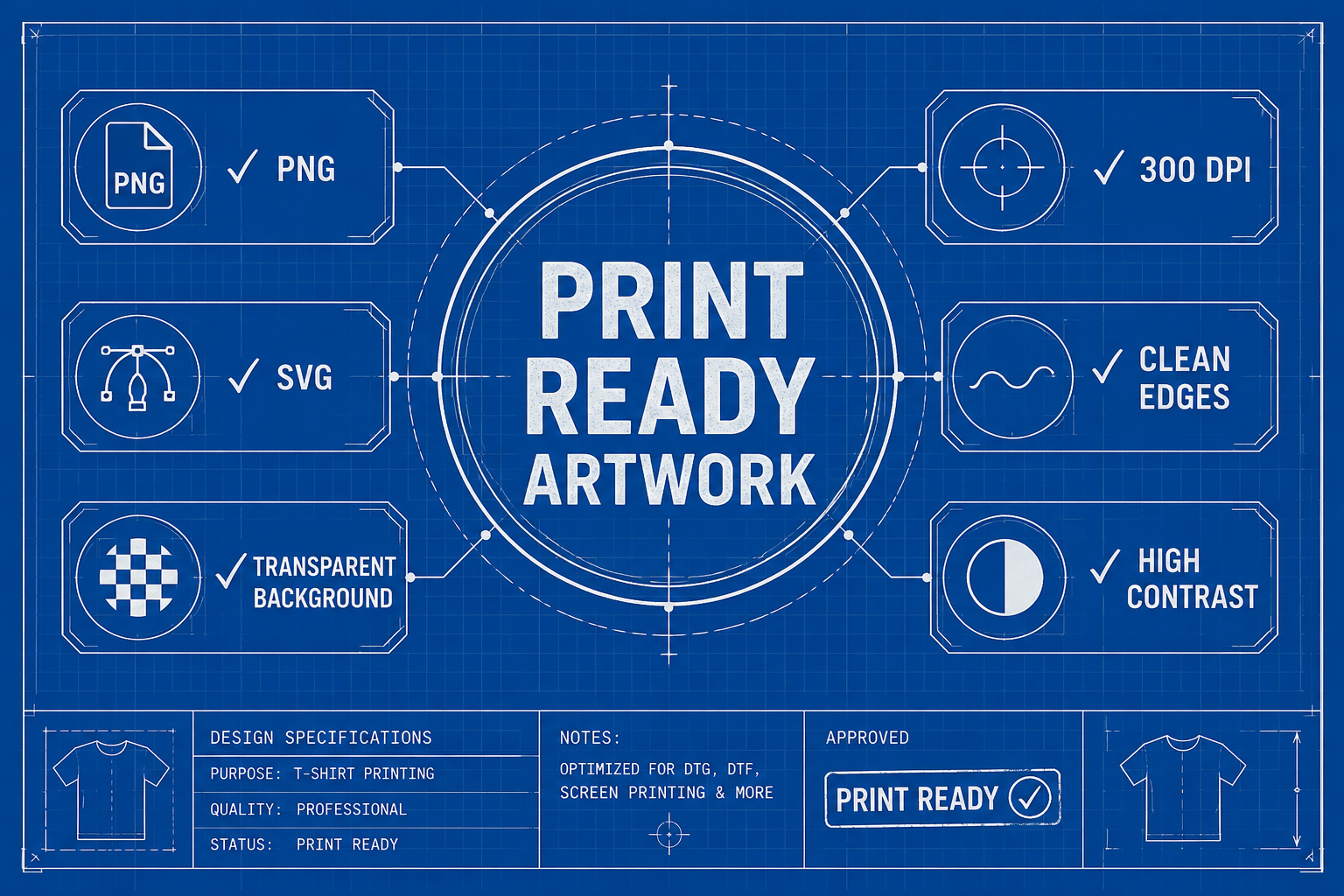
File Requirements (Non-Negotiable)
If your file doesn’t meet these, it will need edits.
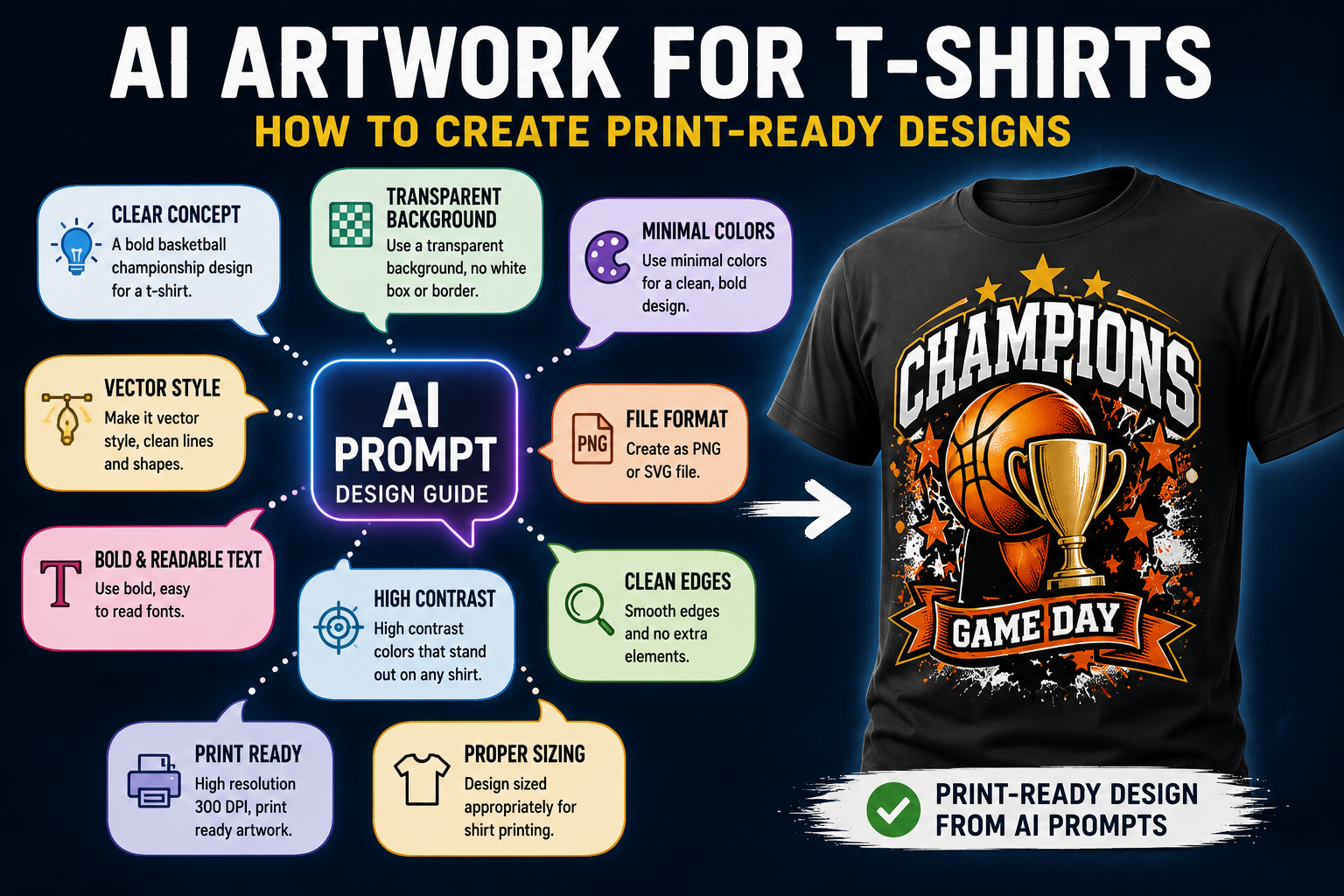
- PNG with a transparent background
- SVG (vector format preferred)
- 300 DPI resolution
- Clean edges (no glow, blur, or shadows)
👉 Quick answer: The best file format for t-shirt printing is a transparent PNG or clean SVG file.
Prompting AI for Print-Ready Results
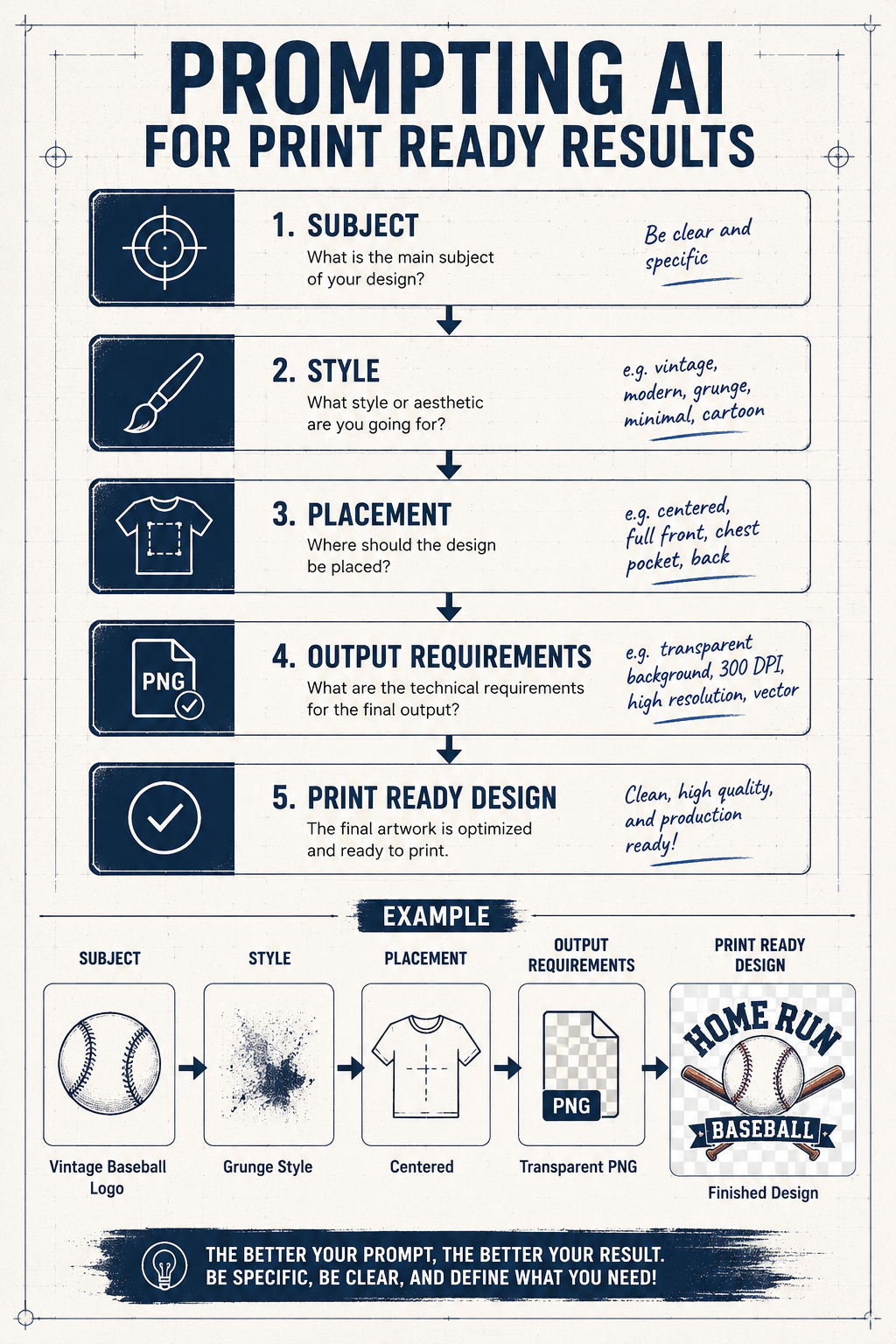
AI only gives you what you ask for. Use better prompts, get better results. Include phrases like:
- “transparent background”
- “isolated design”
- “print-ready”
- “centered composition”
- “vector style”
- “clean lines”
- “high contrast”
Proper Sizing for Apparel
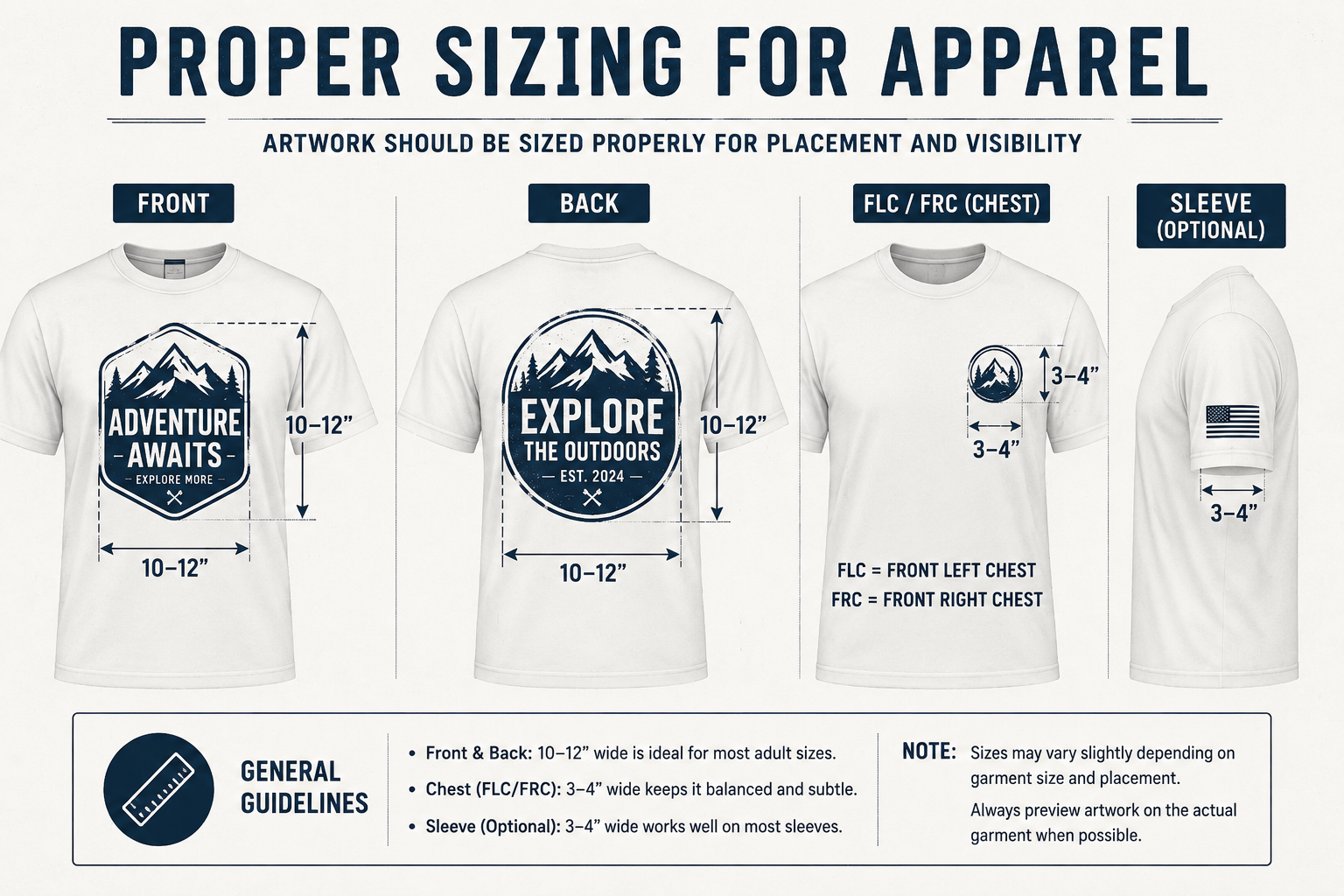
Sizing mistakes are very common. Use these standards:
- Full front: 10–12 inches wide
- Left chest: 3–4 inches wide
👉 Add this to your prompt:
Design sized for a 12-inch wide printColor Matters More Than You Think
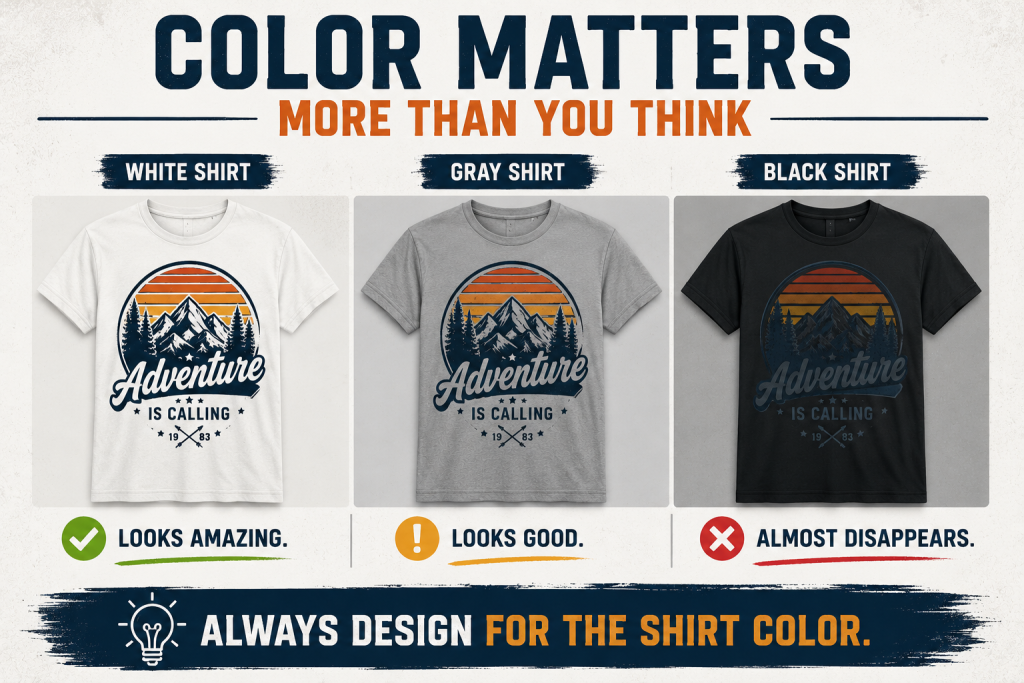
Your design might look great on a white screen… But what shirt is it going on?
Always define:
- Shirt color
- Contrast level
👉 Example prompt:
Design for a black shirt with bold, bright colorsFonts & Text (Biggest Failure Point)
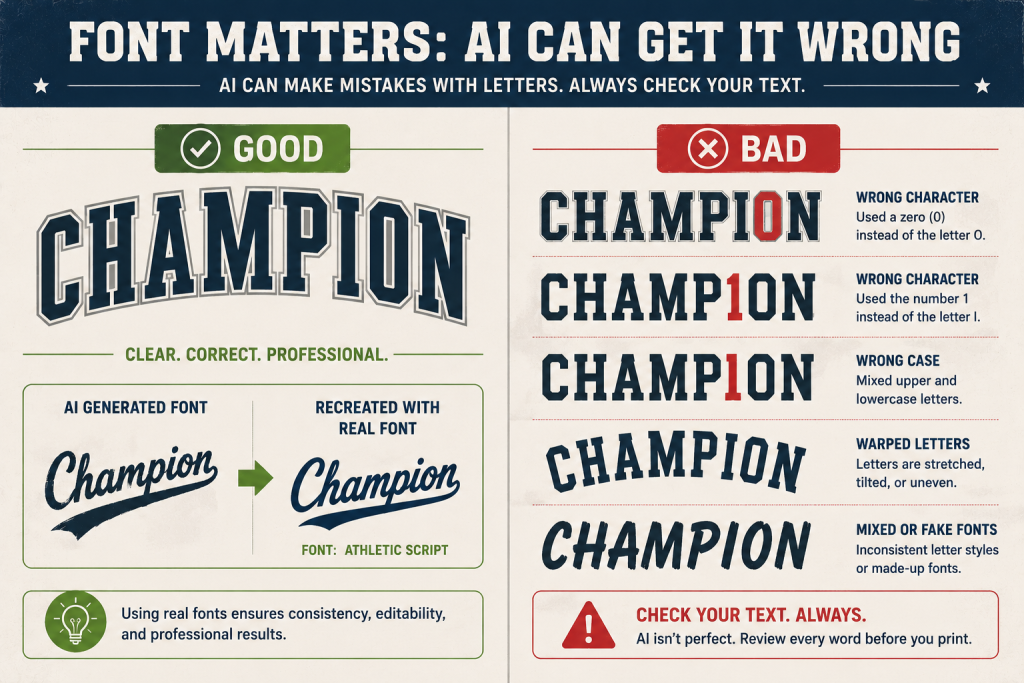
AI struggles with text. A lot.
Problems:
- Fake fonts
- Warped letters
- Spacing issues
What to do:
- Ask for:
- “clean typography”
- “bold readable font”
Be ready to rebuild text in design software
Always Request These File Types
- PNG (for printing)
- SVG (for scaling and editing)
👉 Even then, expect some cleanup.
How to Create AI T-Shirt Designs (Step-by-Step)
Let’s walk through how to actually create better AI artwork for t-shirts.
Step 1 – Start With a Clear Concept
Before you even open an AI tool, define:
- Who is this for? (school, business, team)
- What is it for? (event, merch, branding)
- Where will it go? (front, back, chest)
Clear direction = better results.
Step 2 – Build a Strong Prompt
Use this formula:
Subject + Style + Placement + Output RequirementsStep 3 – Example AI Prompts
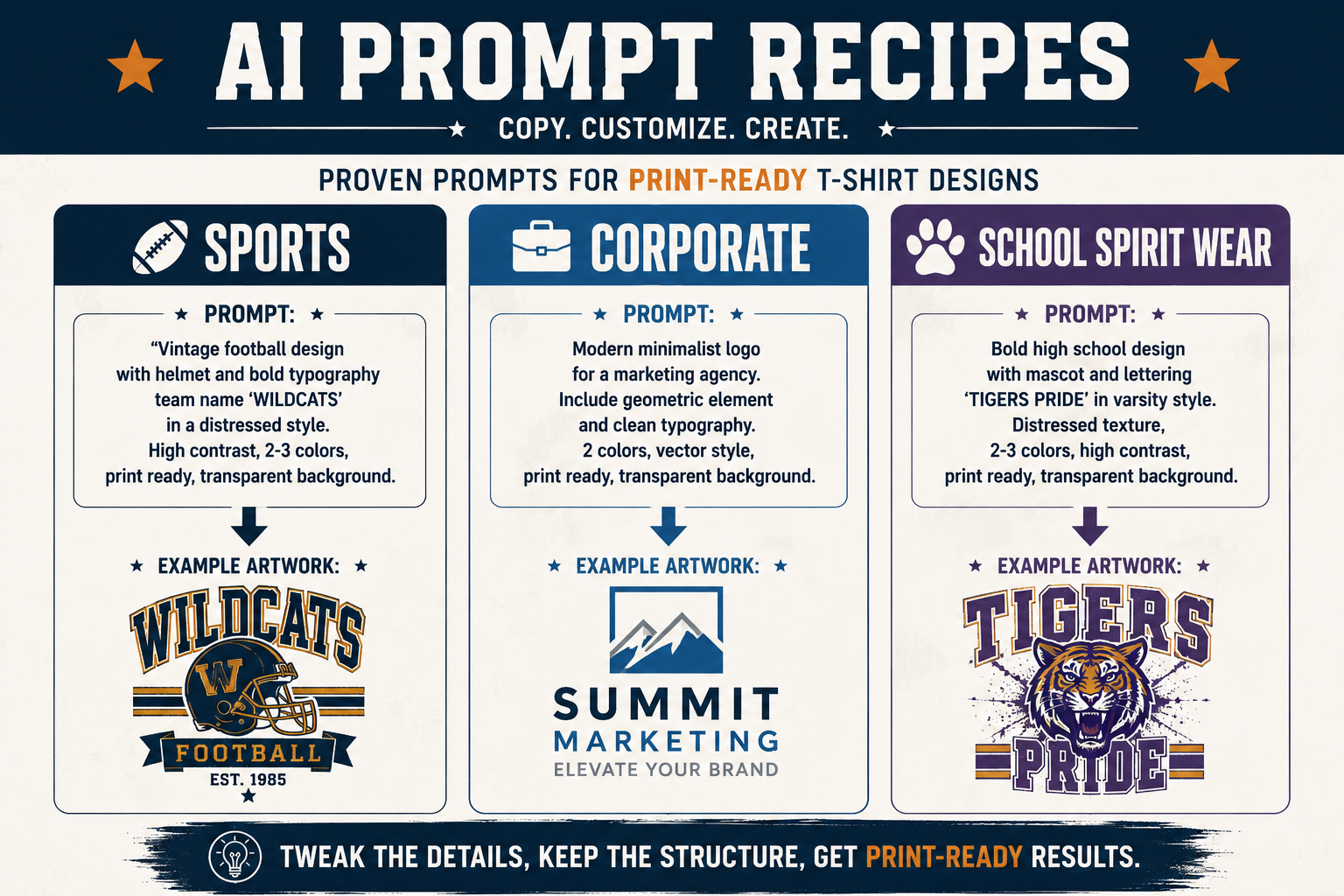
Here are a few you can use right away:
Sports Team:
Vintage baseball graphic, bold typography, centered composition, design for black shirt, transparent background, print-ready, vector styleCorporate Apparel:
Clean modern logo style, minimal design, centered chest placement, high contrast, transparent background, print-ready vectorSchool Spirit Wear:
Bold mascot graphic, bright school colors, centered composition, high contrast, transparent background, print-readyStep 4 – Choose a Style Direction
Pick a clear style before generating:
- Vintage / distressed
- Minimal / modern
- Mascot / sports
- Streetwear / grunge
- Script / elegant
- Corporate clean
Common AI Artwork Mistakes to Avoid
This is where most AI t-shirt design projects fall apart.
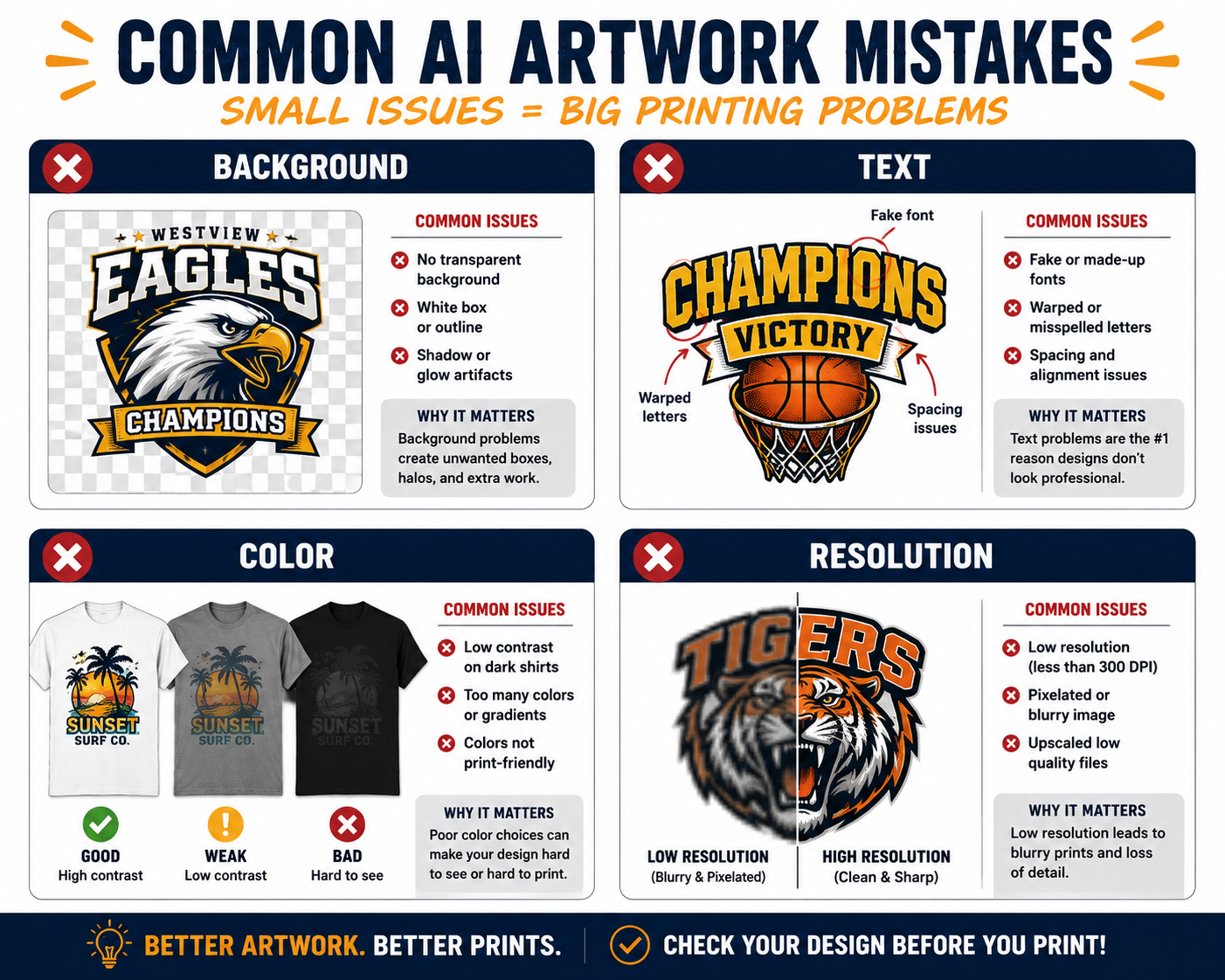
Background Problems
- Not truly transparent
- White outlines
- Shadow artifacts
Text Issues
- Misspellings
- Warped letters
- Bad spacing
Design Complexity Problems
- Too detailed
- Blurry edges
- Uneven lines
Color Mistakes
- Too many gradients
- Low contrast
- Not garment-friendly
File Problems
- Fake vector files
- Low resolution
- Flattened artwork
How to Fix AI Artwork for Printing
Good news—you can fix most issues.
Common Fixes
- Remove background
- Clean edges
- Rebuild text
- Convert to vector
- Adjust colors
Tools to Use
Professional:
- Affinity Designer
- Adobe Illustrator
- Adobe Photoshop
- Corel Draw
Beginner-Friendly:
- Canva
- remove.bg
Typical Workflow
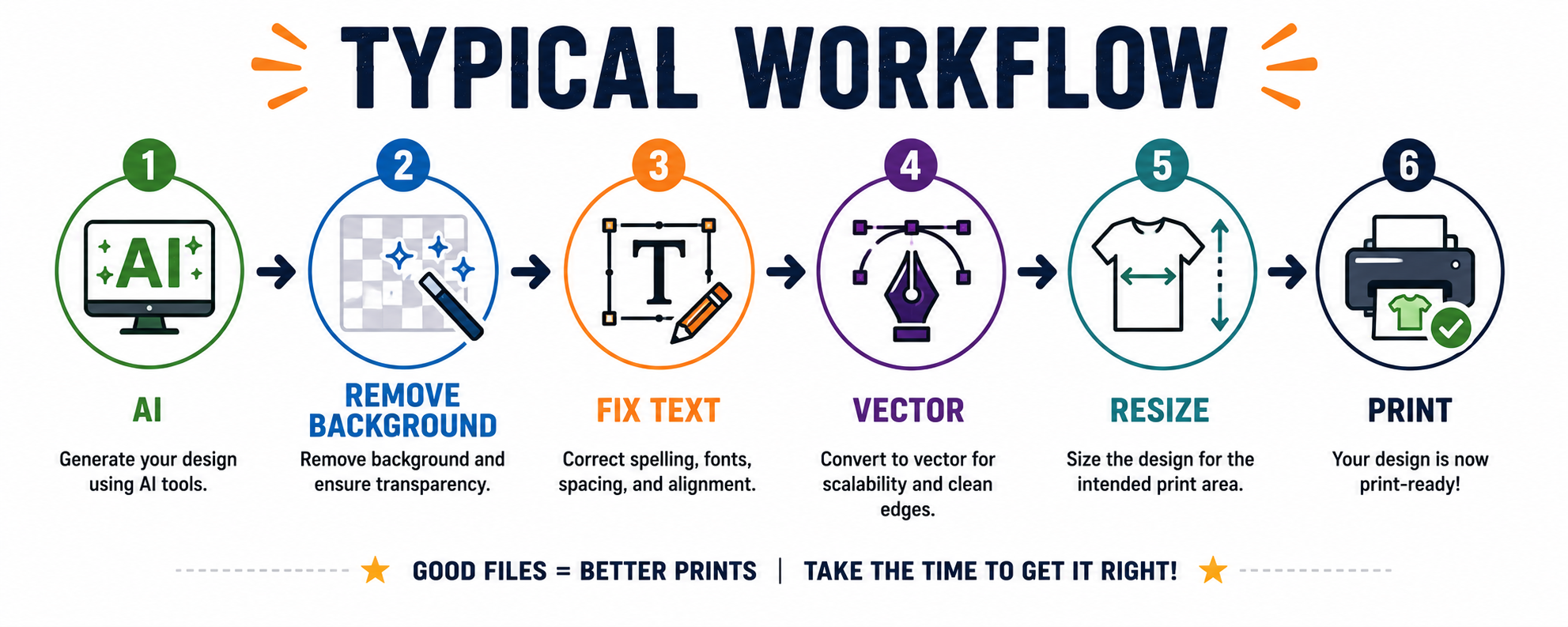
- Generate AI design
- Remove/verify background
- Fix text
- Convert to vector
- Clean up paths
- Resize and export
Best Practices for Printing Success
Keep It Simple
- Bold shapes
- Fewer colors
Design for the Garment
- Match shirt color
- Ensure strong contrast
Test Before Production
- Print a sample
- Zoom in on edges
Avoid These
- Tiny text
- Thin lines
- Heavy gradients
Pro Tips for Better AI T-Shirt Designs
Think Like a Designer
Use terms like:
- “vector style”
- “clean lines”
- “high contrast”
Iterate Your Designs
- Generate multiple versions
- Combine the best parts
Think in Layers
- Background
- Main graphic
- Text
Use AI as a Starting Point
AI is a tool. Not the final product.
Print-Ready AI Artwork Checklist
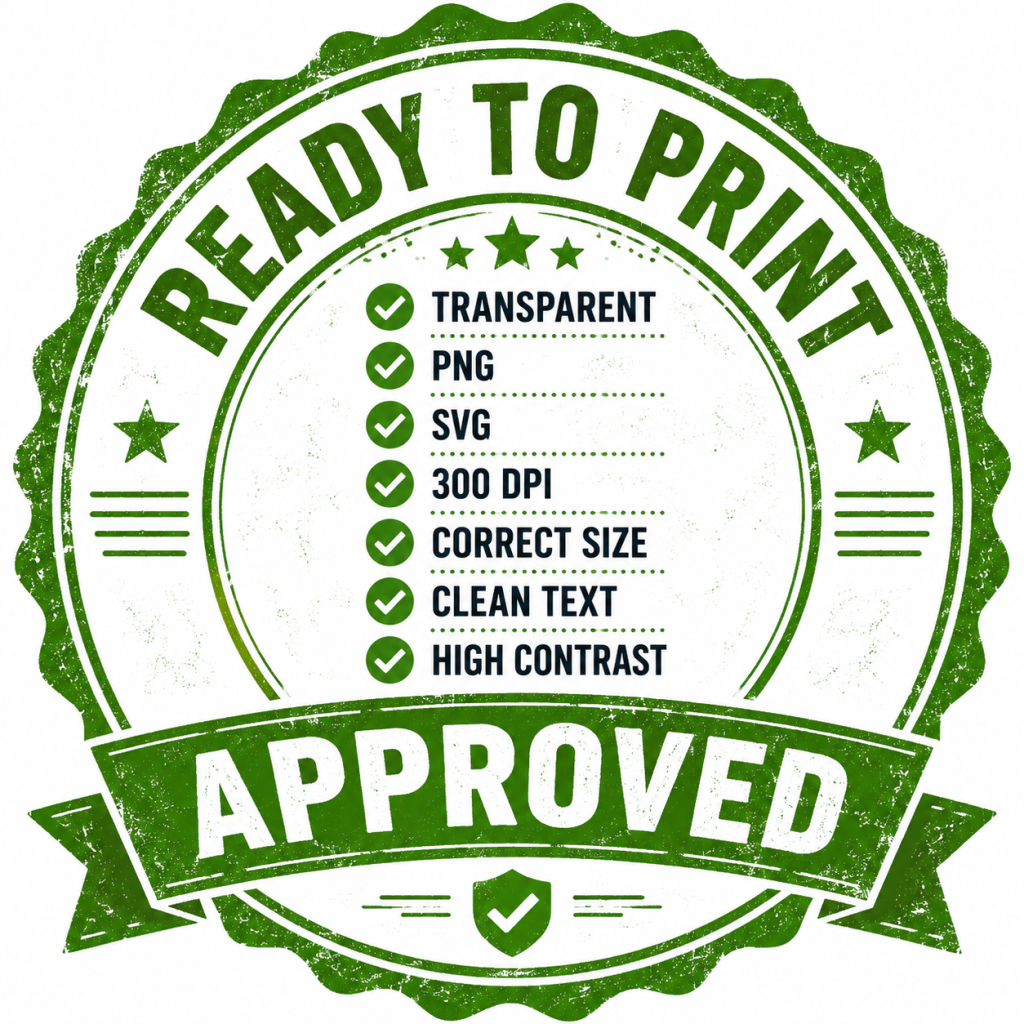
✔ Transparent background
✔ 300 DPI resolution
✔ Correct size
✔ Clean text
✔ High contrast
✔ SVG or vector file
✔ No artifacts
Understanding Printing Methods (Why It Matters)
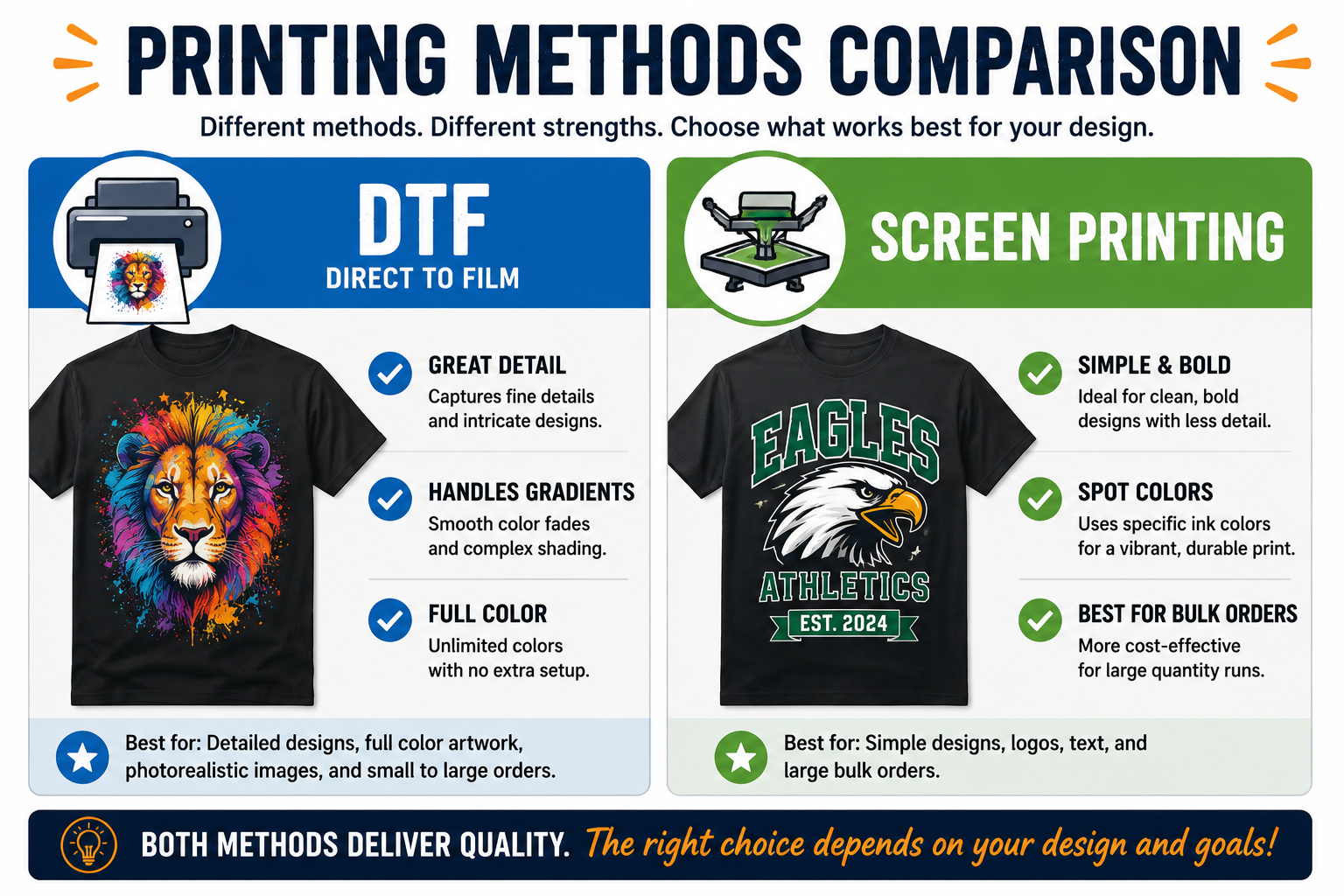
Different printing methods handle designs differently.
DTF (Direct to Film):
- Great for detailed designs
- Handles multiple colors well
Screen Printing:
- Best for simple designs
- Fewer colors = better results
👉 This is why simple designs usually print better.
File Naming & Version Control Tips
Stay organized:
- design-name_size_version.png
- Save multiple versions
- Don’t overwrite files
How Better Files Speed Up Your Order
Better files = better experience.
- Faster turnaround
- Fewer revisions
- Lower cost
- Better final product
FAQs About AI Artwork for T-Shirts
Why does my AI design look different when printed?
Screens show RGB colors. Printing uses different processes. Contrast and detail matter more in print.
What file type is best for t-shirt printing?
Transparent PNG or clean SVG files.
Can AI designs be converted to vector files?
Yes—but most require cleanup in design software.
Can you fix my AI artwork?
Yes. Most designs can be cleaned, adjusted, and made print-ready.
Need Help Getting Your Design Print-Ready?
If you’ve created AI artwork for t-shirts but aren’t sure it’s ready… We’ve got you. At Coey’s Closet, we specialize in:
- Cleaning up AI artwork
- Fixing text issues
- Converting files to print-ready formats
- Adjusting size and color for apparel
👉 Send us your design and we’ll make sure it prints perfectly.
Bonus: Free Prompt Ideas to Get Started
- Funny shirt: “bold humorous text, clean typography, centered, high contrast, transparent background”
- Corporate: “minimal logo style, clean lines, modern, print-ready vector”
- Team: “mascot graphic, bold colors, high contrast, centered composition”
Final Thoughts
AI artwork for t-shirts is powerful. It’s fast. It’s creative. It’s fun. But it’s not a shortcut to print-ready files—at least not yet.
The best results come from:
- Better prompts
- Smart design choices
- And a little cleanup
👉 Use AI to create. Use experts to refine.
Helpful Links
- Custom T-Shirts for Schools & Businesses
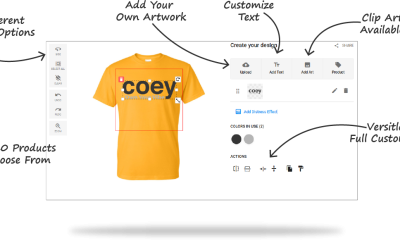
- Put your AI created artwork to use with our Online Design Studio
- Our Knowledge Hub for additional information
Got an AI design you’re not sure about?
Don’t risk a bad print.
👉 Send it to Coey’s Closet and we’ll review, clean, and prep it for production—so it comes out exactly how you want.